Templates
Thumbnail Generator uses HTML Handlebars templates to generate thumbnails.
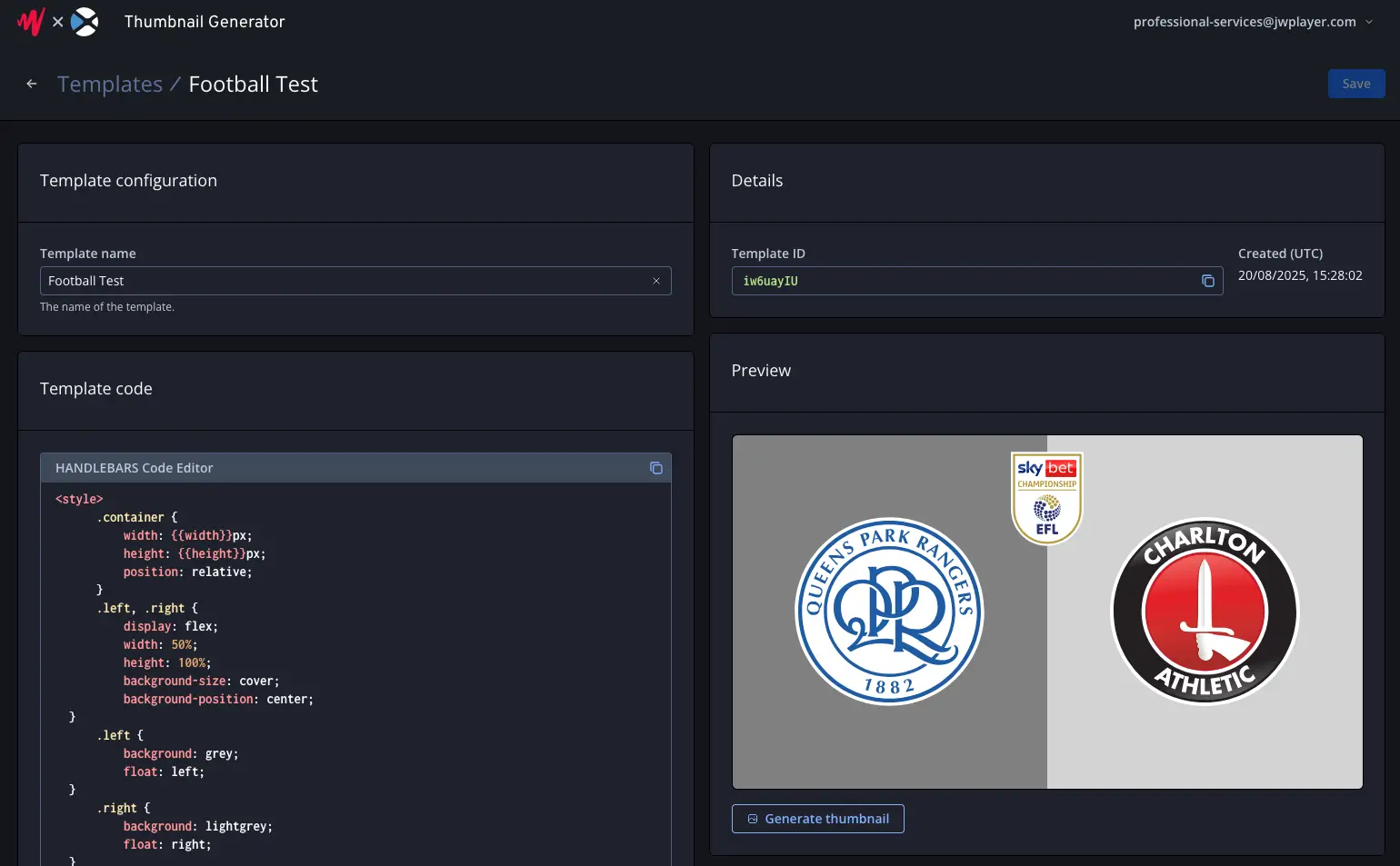
Managing templates
Templates can be created, updated and deleted via the Thumbnail Generator front-end.
Creating a template
In the Thumbnail Generator front-end, click "Create template" to create a new template.
Update a template
To update a template:
- In the Thumbnail Generator front-end, click on the name of the template to access the template editing page
- You can edit the template's name under "Template name"
- You can enable filename customisation under "Filename customisation". See filename customisation for details.
- You can edit the template code under "Template code". See template format for details.
- You can preview the template on the right under "Preview"
- You can update the data used in the preview under "Preview data". You can also update this by making a generate thumbnail API request that includes the key
update_previewwithin thedataobject. - You can generate a one-off thumbnail using the "Generate thumbnail" button under the preview. For bulk thumbnail generation, we would recommend using the generate thumbnail API.
- To save your changes, click "Save"
Template format
Thumbnail Generator templates use HTML with Handlebars syntax to define the layout of thumbnails.
The JSON data passed to the API is available under data. Additionally, the width and height are available under width and height.
For example, you could have the following template:
<style>
    .container {
        width: {{width}}px;
        height: {{height}}px;
        background-color: {{data.bgColor}};
    }
    .title {
        color: {{data.textColor}};
    }
</style>
<div class="container">
    {{#each data.images}}
        <img src="https://picsum.photos/id/{{this}}/300/300" />
    {{/each}}
    <h1 class="title">{{data.title}}</h1>
</div>
Then you could call the generate thumbnail API with the following:
{
    "data": {
        "title": "Hello World!",
        "bgColor": "red",
        "textColor": "blue",
        "images": [12, 13, 14]
    },
    "width": 1280,
    "height": 720
}
Which would generate this thumbnail:
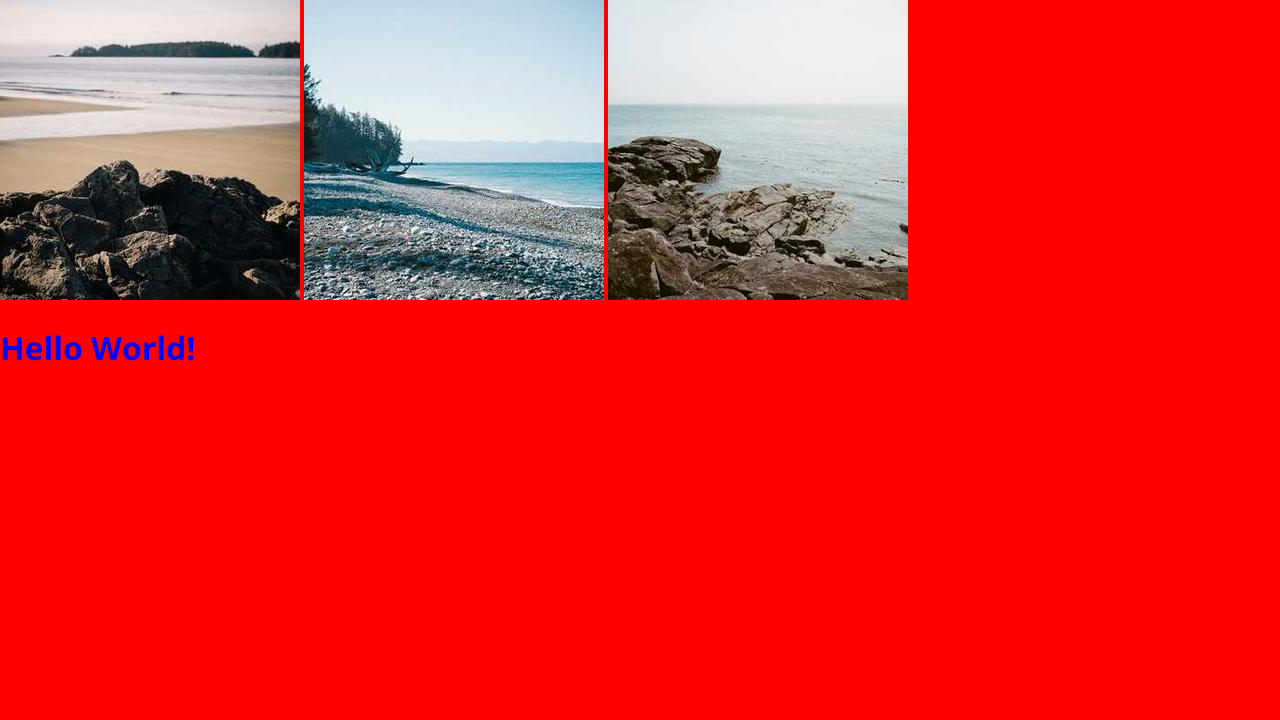
The thumbnails are rendered in the backend using the Chromium browser engine, and are returned in PNG format.
This means that you can use any HTML features that Chromium supports in your template, including images, advanced CSS and custom fonts.
To use external resources such as images in your template, they simply need to be available publicly over HTTP with CORS set up correctly, just like you would if you were using the resource on a website.
If a resource loaded by the template responds with an error status code (>400), the Generate Thumbnail API will respond with a 422 error, allowing you to catch issues with the template or input data more easily.
Filename customisation
If you would like to customise the filename of the output thumbnails, you can enable this using the "Filename customisation" toggle.
This allows you to use a Handlebars template to build the filename of each generated thumbnail, using the same data as is available in the thumbnail HTML template.
Note: Characters listed by AWS S3 as "Characters to avoid" or "Characters that might require special handling" will be replaced with underscores.